





Skip to main content Scroll Top
PARÂNG MOUNTAINS
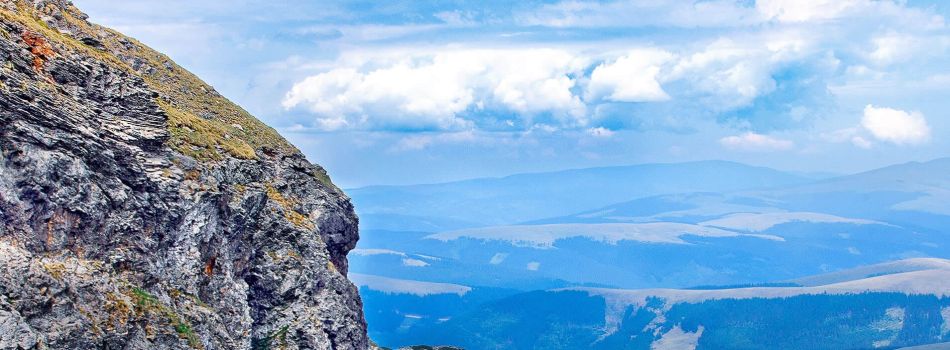
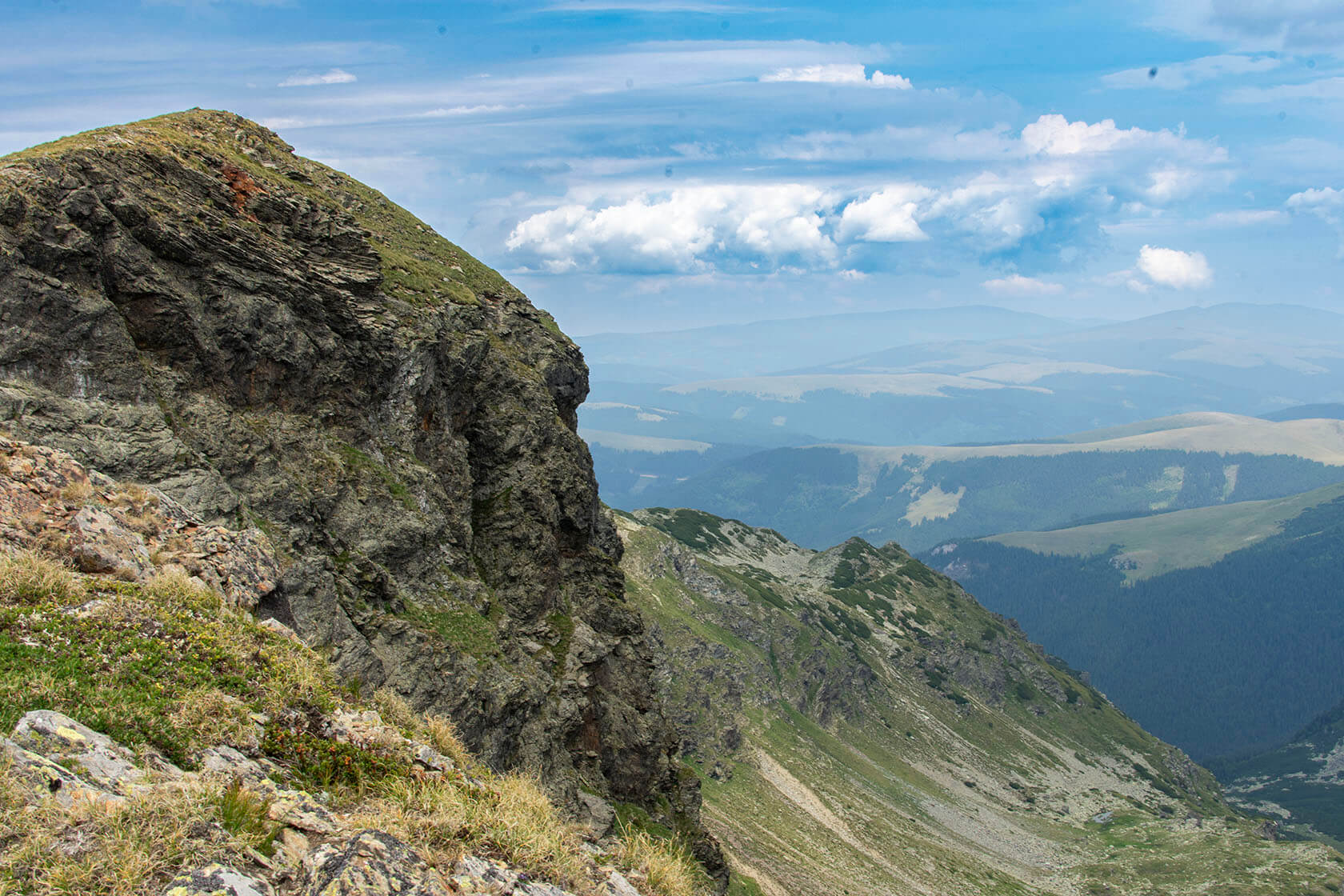
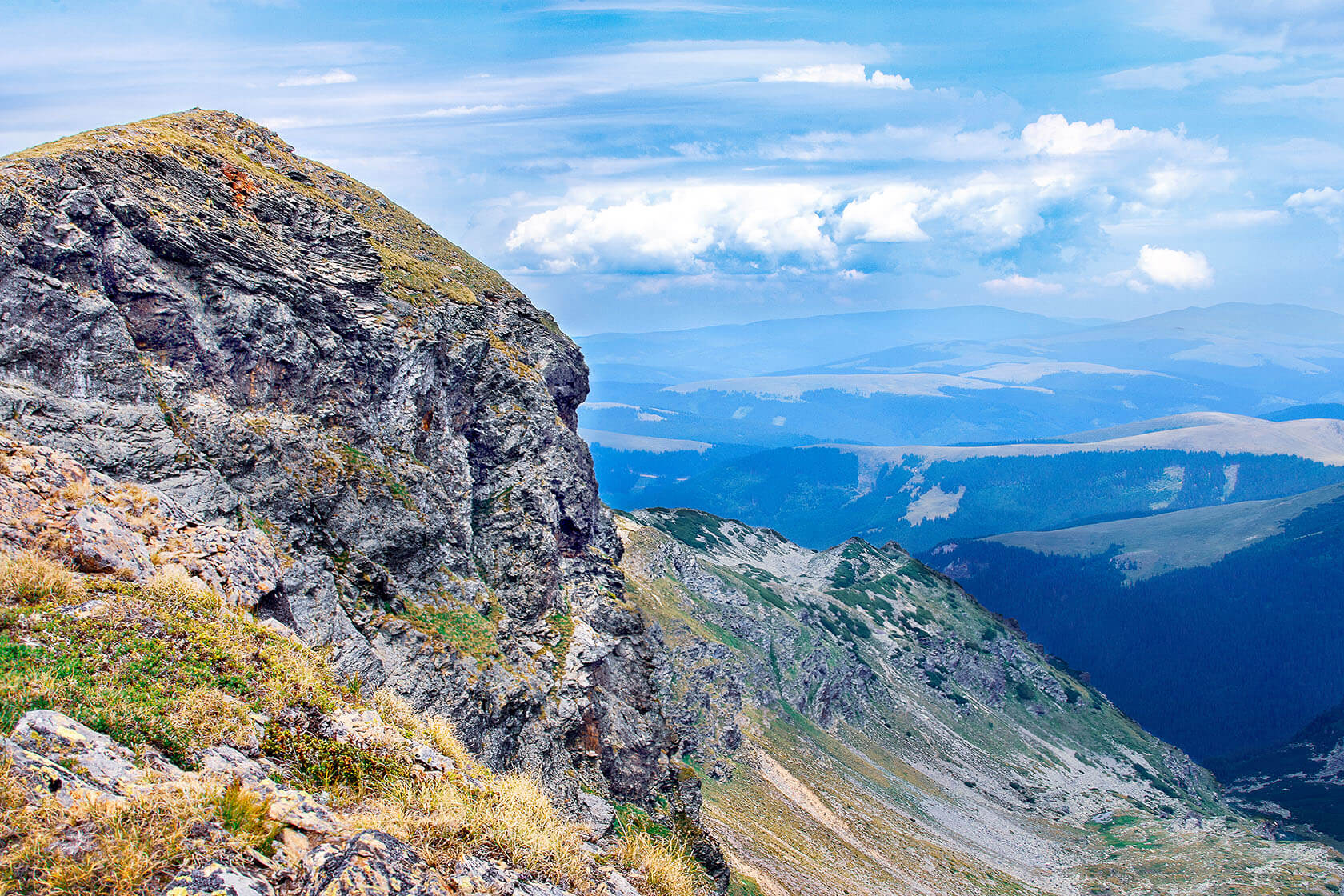
Parang-View-Landscape-Retouching-Bratcovici Radu-detail2

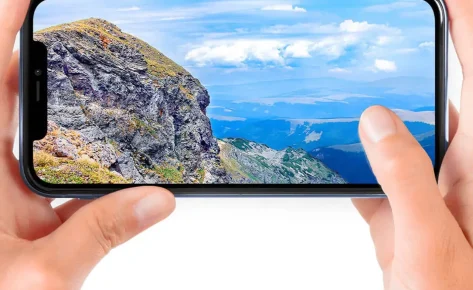
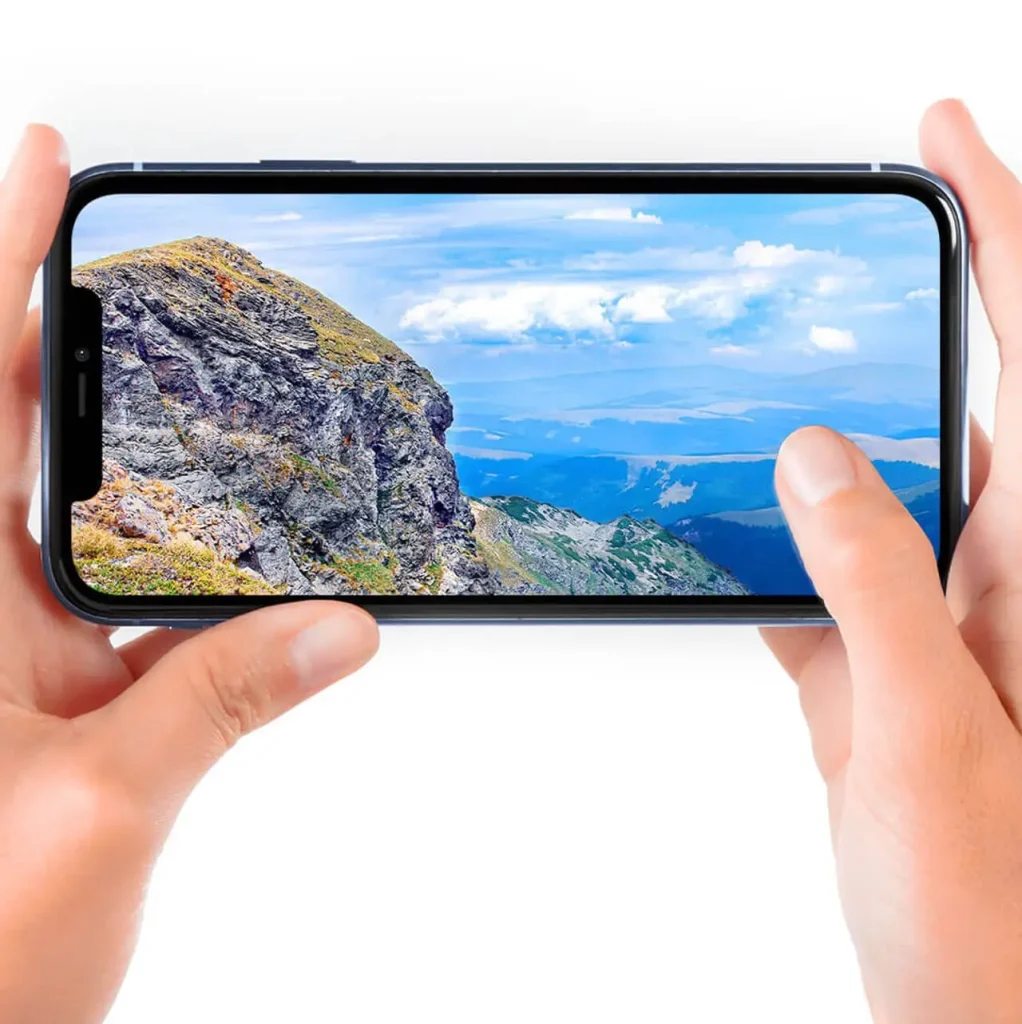
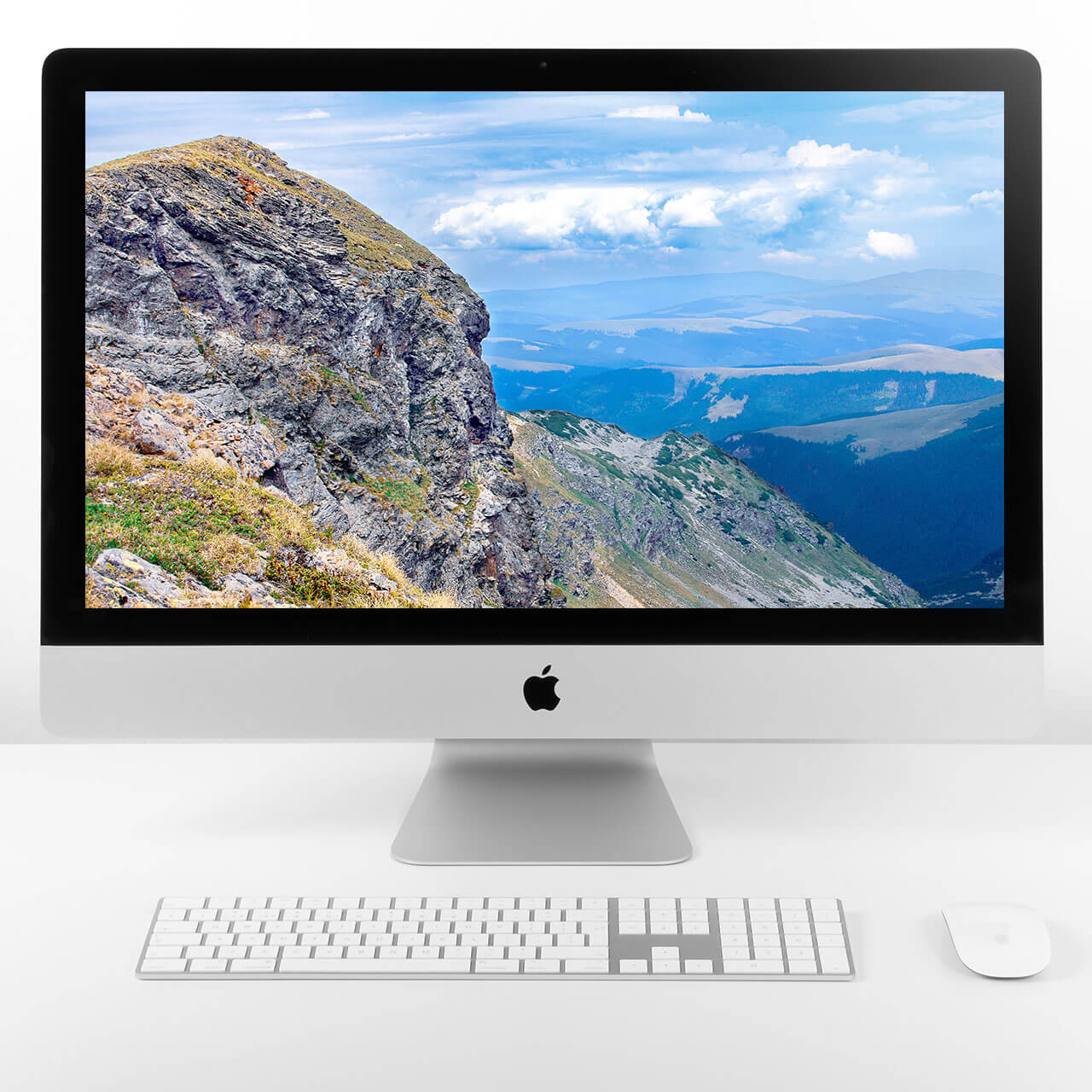
This edit preserves the raw character of the Parâng Mountains while delivering a more vivid and immersive visual experience.

I began the retouching process by adjusting the profile and correcting chromatic aberration in Lightroom. This made the colors cleaner and the image more accurate before moving it into Photoshop.

In Photoshop, I removed visible dust spots and small marks from the sky using basic repair tools. like Healing Brush and Clone Stamp tools. This helped create a smooth and distraction-free background.

To make the scene feel deeper, I adjusted the contrast so the rocky textures in the front stood out more, while the distant hills looked softer and more atmospheric, working with curves adjustments combined with luminosity masks. Selectively increasing contrast in the rocky textures while softening the distant hills for a more atmospheric effect.

Polish your first impression

I balanced the sky by darkening it gradually and fine-tuning the colors, bringing out the blues and giving the clouds more defined cloud structures gradient masks and selective hue adjustments.
I fine-tuned vegetation tones with hue/saturation layers, carefully enhancing the greens and earth tones without oversaturating,  making them richer but still realistic.

For the rocky areas, I used a technique to smooth out any strange color patches while keeping the fine textures sharp.

Final steps included local sharpening applied at different depths across the image, foreground elements were enhanced for clarity, while background layers were gently softened to maintain a natural haze.

Customer

Elitelocksmith LTD

Category

Website, Services, Presentation

Tags

#wordpress, #design, #photoshop, #retouch, #optimize

Skills used
Color Correction
45%
Shadows and Highlights
30%
Frequency Separation
20%
Sharpening
5%
Parang-View-Landscape-Retouching-Bratcovici Radu-detail2

This edit preserves the raw character of the Parâng Mountains while delivering a more vivid and immersive visual experience.

I began the retouching process by adjusting the profile and correcting chromatic aberration in Lightroom. This made the colors cleaner and the image more accurate before moving it into Photoshop.

In Photoshop, I removed visible dust spots and small marks from the sky using basic repair tools. like Healing Brush and Clone Stamp tools. This helped create a smooth and distraction-free background.

To make the scene feel deeper, I adjusted the contrast so the rocky textures in the front stood out more, while the distant hills looked softer and more atmospheric, working with curves adjustments combined with luminosity masks. Selectively increasing contrast in the rocky textures while softening the distant hills for a more atmospheric effect.

I balanced the sky by darkening it gradually and fine-tuning the colors, bringing out the blues and giving the clouds more defined cloud structures gradient masks and selective hue adjustments.
I have fine-tuned vegetation tones with hue/ saturation layers, carefully enhancing the greens and earth tones without oversaturating,  making them richer but still realistic.

For the rocky areas, I used a technique to smooth out any strange color patches while keeping the fine textures sharp.

Final steps included local sharpening applied at different depths across the image, foreground elements were enhanced for clarity, while background layers were gently softened to maintain a natural haze.

Skills used
Color Correction
45%
Shadows and Highlights
30%
Frequency Separation
20%
Sharpening
5%
POLISH YOUR FIRST IMPRESSION
Parang-View-Landscape-Retouching-Bratcovici Radu-detail2

This edit preserves the raw character of the Parâng Mountains while delivering a more vivid and immersive visual experience.

I began the retouching process by adjusting the profile and correcting chromatic aberration in Lightroom. This made the colors cleaner and the image more accurate before moving it into Photoshop.

In Photoshop, I removed visible dust spots and small marks from the sky using basic repair tools. like Healing Brush and Clone Stamp tools. This helped create a smooth and distraction-free background.

To make the scene feel deeper, I adjusted the contrast so the rocky textures in the front stood out more, while the distant hills looked softer and more atmospheric, working with curves adjustments combined with luminosity masks. Selectively increasing contrast in the rocky textures while softening the distant hills for a more atmospheric effect.

I balanced the sky by darkening it gradually and fine-tuning the colors, bringing out the blues and giving the clouds more defined cloud structures gradient masks and selective hue adjustments.
I fine-tuned vegetation tones with hue/saturation layers, carefully enhancing the greens and earth tones without oversaturating,  making them richer but still realistic.

For the rocky areas, I used a technique to smooth out any strange color patches while keeping the fine textures sharp.

Final steps included local sharpening applied at different depths across the image, foreground elements were enhanced for clarity, while background layers were gently softened to maintain a natural haze.

Skills used
Color Correction
45%
Shadows and Highlights
30%
Frequency Separation
20%
Sharpening
5%
Polish Your First Impression
Customer

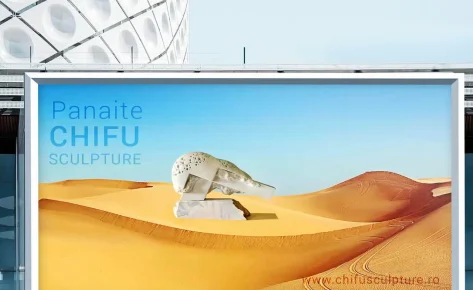
Sculptor CHIFU Panaite

Category

 Art Retouching

Tags

#photoshop, #retouch, #optimize

get in touch

    Hidden fields

    Before & After

    Want Your Photos to Stand Out?
    Want Your Photos to Stand Out ?
    Want Your Photos to Stand Out ?
    Recently Added
    Recently Added
    Privacy Preferences
    When you visit our website, it may store information through your browser from specific services, usually in form of cookies. Here you can change your privacy preferences. Please note that blocking some types of cookies may impact your experience on our website and the services we offer.